

Ken Rennie
Well-Known Member
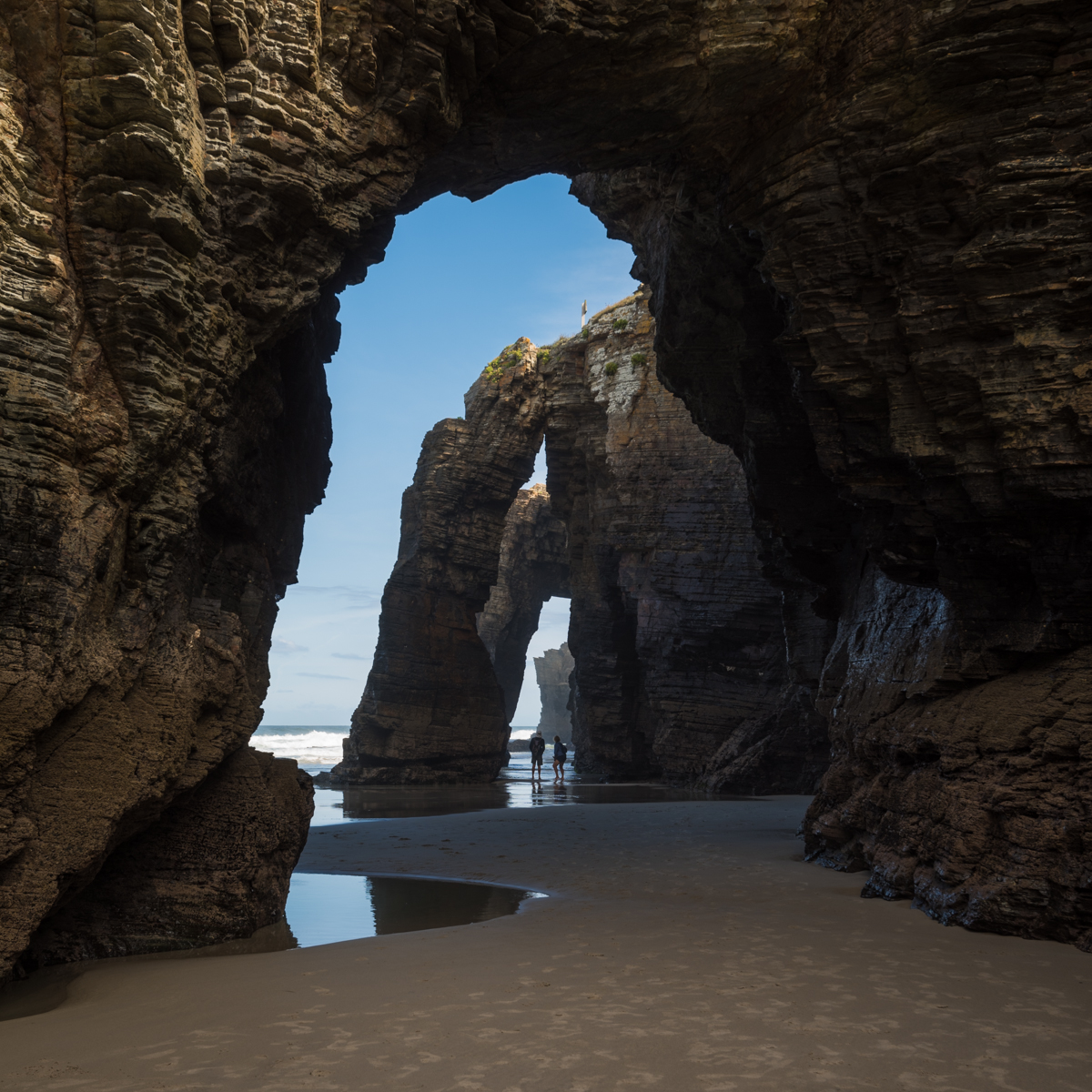
It is not always possible to be the first person at a location and a large number of footprints can spoil an image and removing them with the clone tool or one of the brushes can be tedious. Here is the original
Although you can paint or clone on the original it is much easier to work on a separate layer and if you use SMART objects you have to work on a new layer.
So New Layer Blend Mode to Darken
Select very large soft clone stamp tool
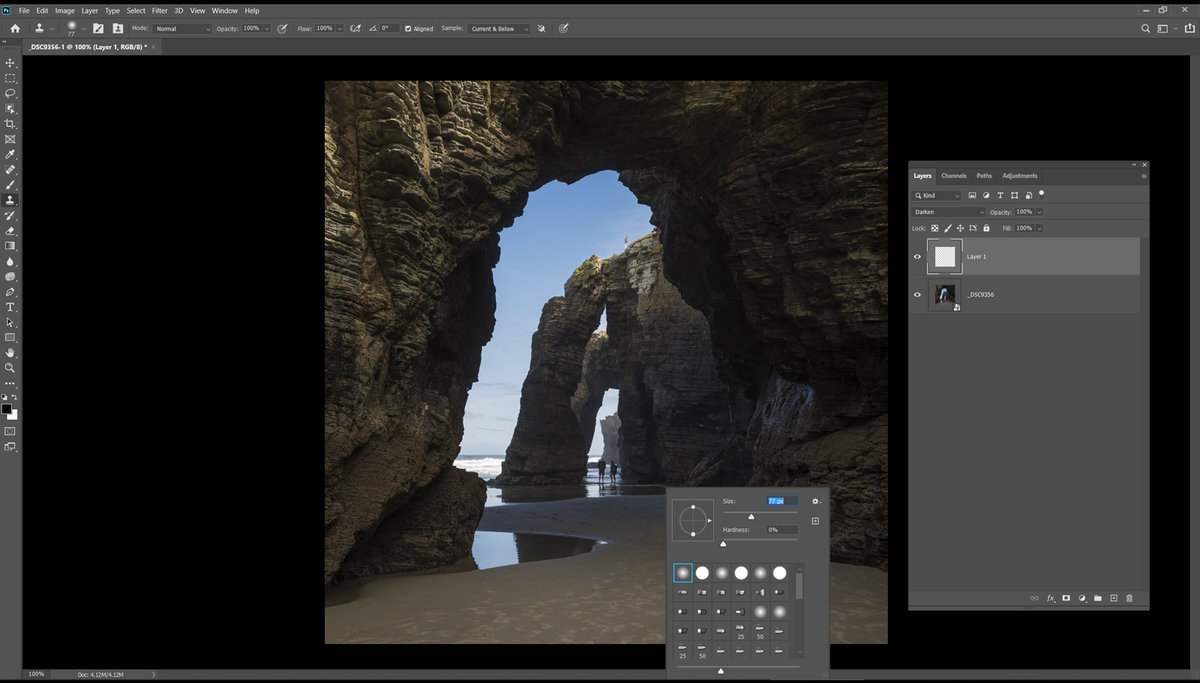
Alt click on virgin sand and paint over the footprints
Alt click on different piece of sand and paint over.
It takes no more than a few seconds to complete.
Difficult prints can deleted by stamping a new layer and using the spot healing brush tool.
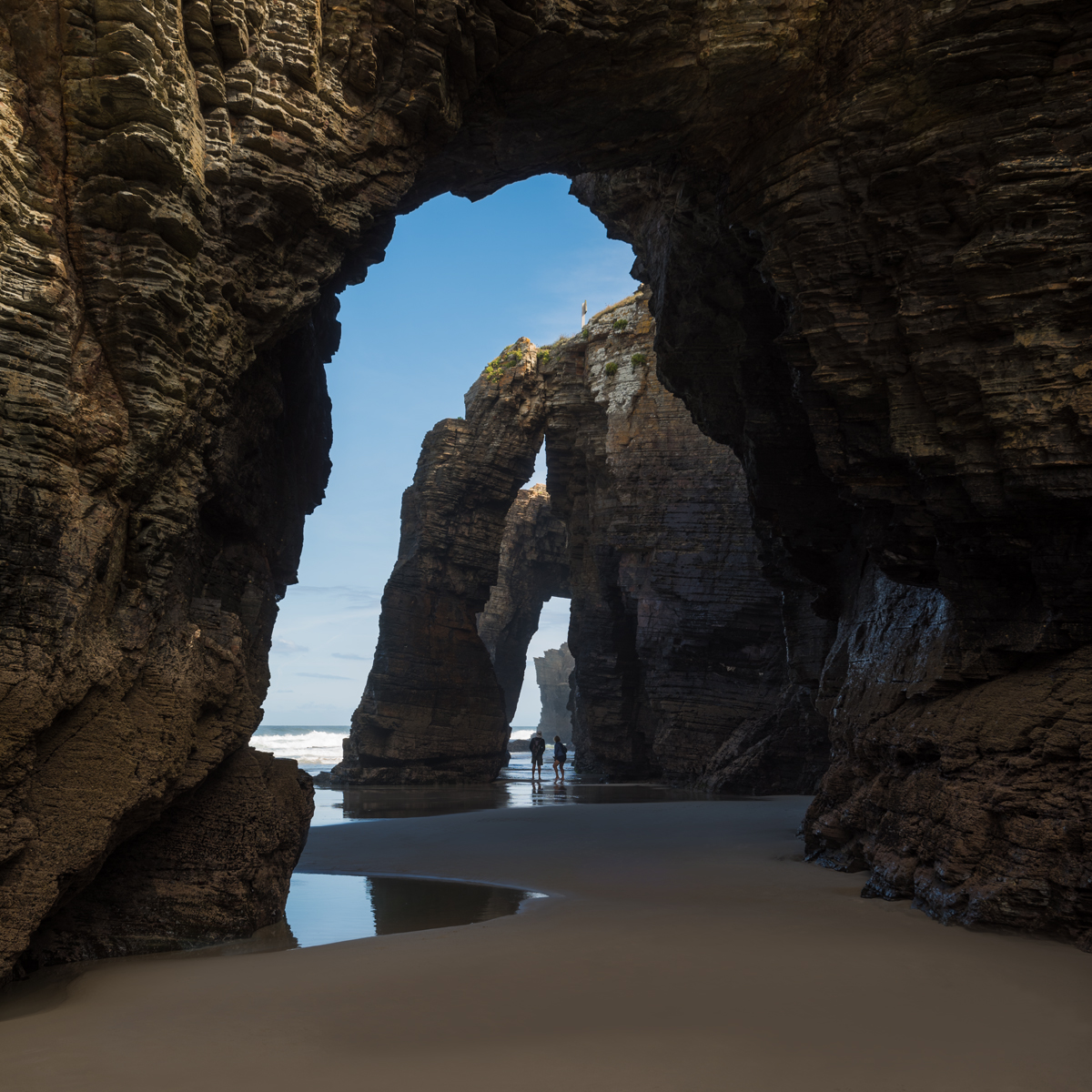
This is the after image. I have used darken and then lighten layers to remove the small darker pieces. I have also used negative texture, perhaps too much
It is not only sand but it also works on snow and here you use a lighten blend mode mostly but you will need to use a darken mode layer to remove the brighter patches in the footprints.
Before
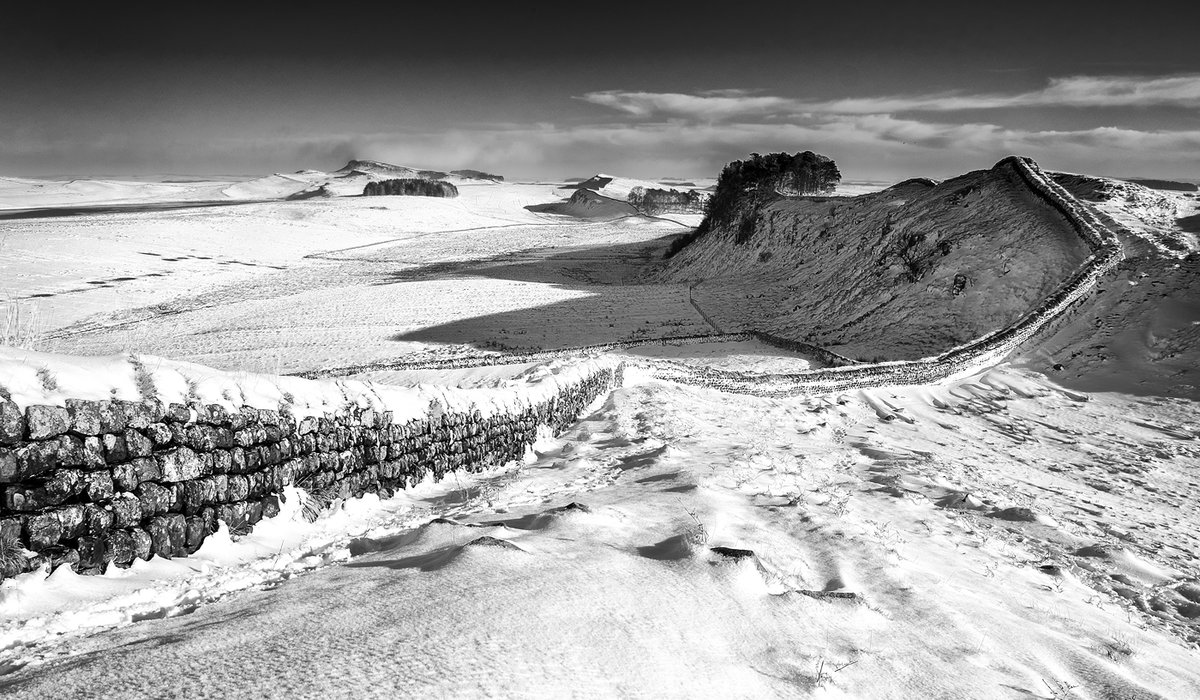
and after

As always just ask for more information.
Although you can paint or clone on the original it is much easier to work on a separate layer and if you use SMART objects you have to work on a new layer.
So New Layer Blend Mode to Darken
Select very large soft clone stamp tool
Alt click on virgin sand and paint over the footprints
Alt click on different piece of sand and paint over.
It takes no more than a few seconds to complete.
Difficult prints can deleted by stamping a new layer and using the spot healing brush tool.
This is the after image. I have used darken and then lighten layers to remove the small darker pieces. I have also used negative texture, perhaps too much
It is not only sand but it also works on snow and here you use a lighten blend mode mostly but you will need to use a darken mode layer to remove the brighter patches in the footprints.
Before
and after
As always just ask for more information.
Last edited: